How to merge PDF files on Windows
To merge PDF files on Windows, download WekApps PDF Merge & Split Pro, open the Merge tab, add your PDFs, arrange them in the order you want, then click Merge. Your files stay on your PC the whole time — nothing is uploaded.
Before you start
You can merge as many PDF files as you like into one document. You can also choose to include only some pages of each source file, and you can merge password-protected PDFs as long as you know their password.
Tip: merging is done locally, so it's fast and private — even for large files.
Step-by-step: merge PDFs
-
Download and install the program
Get the free version from the Download page and run the installer. It takes under a minute.
-
Open the Merge tab and add your files
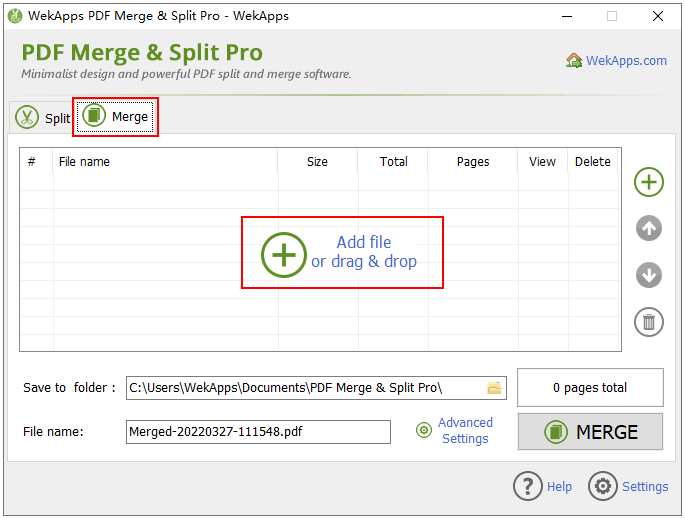
Launch the program and click the Merge tab. Click “Add file” to browse for your PDFs, or simply drag and drop several files into the window.
-
Arrange the files in the right order
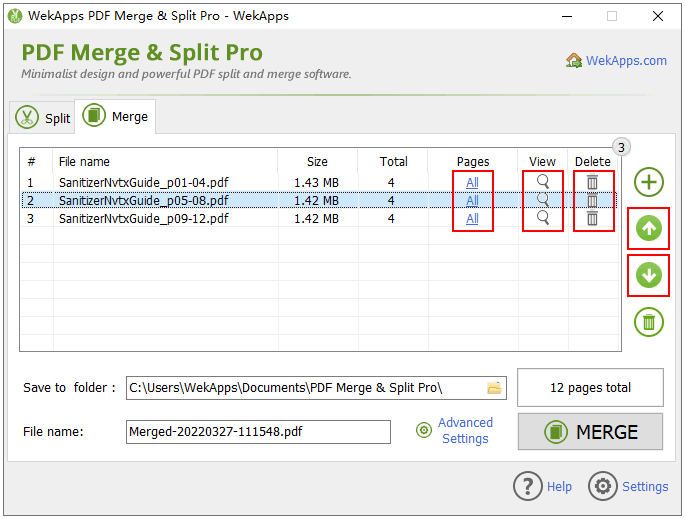
Once your files are listed, use the up/down arrows on the right to set the order they will appear in the final PDF.
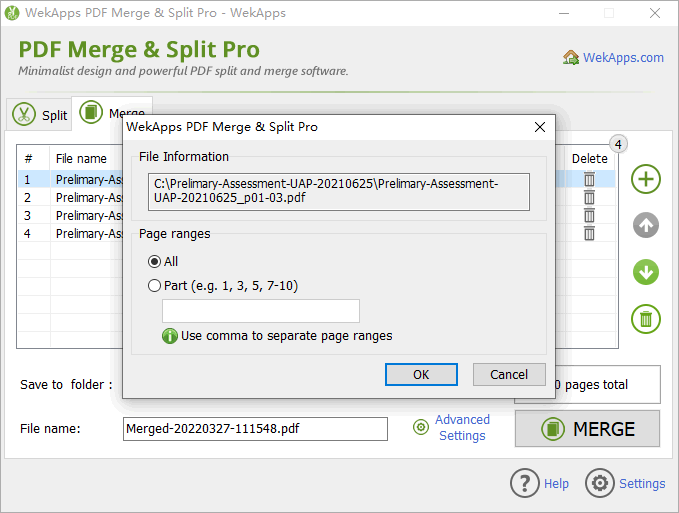
- Pages — click to choose a page range; the default is all pages.
- View — click the icon to preview that PDF.
- Delete — click the icon to remove a file from the list.
-
Choose the output location and file name
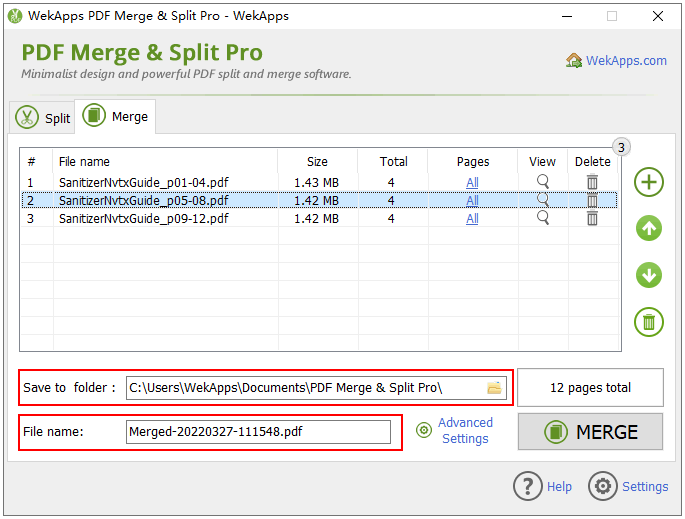
Pick the folder where the merged PDF should be saved. A file name is generated automatically (from the current date and time) and you can edit it.
-
Click Merge
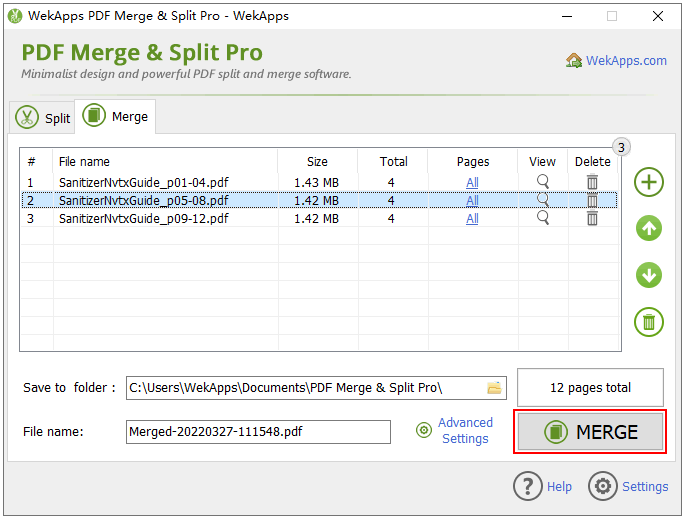
Click the Merge button and the program combines your files into a single PDF.
Merging only selected pages
If you only want part of a PDF, use the Pages column before merging. For example, to take only pages 2, 5, 6, 7 and 9 from a 10-page PDF, enter the page range 2, 5-7, 9. Only those pages are merged into the output.
Merging password-protected PDFs
You can merge encrypted PDFs by entering their open password when prompted. You can also set an open password on the merged output so only people with the password can open it (Pro feature).
Merge your PDFs now
Download the free version and combine your files in a couple of minutes.
⬇ Free Download (9.47 MB)Related: How to split a PDF · Why merge PDFs offline? · FAQs