How to split a PDF into multiple files on Windows
To split a PDF on Windows, download WekApps PDF Merge & Split Pro, open the Split tab, add your PDF, choose a split method (by page, page range, equal parts, or bookmarks), then click Split. The new PDFs are created instantly on your computer.
Four ways to split a PDF
Different jobs need different splits. PDF Merge & Split Pro gives you four methods, and you can combine them:
- Every N pages — split into one-page files, two-page files, etc.
- Equal parts — divide a PDF into a set number of evenly-sized files.
- By bookmark level — split at each chapter/bookmark of a chosen depth.
- By page range — export only the exact pages you need.
Step-by-step: split a PDF
-
Download and install the program
Get the free version from the Download page and run the installer.
-
Open the Split tab and add your PDF
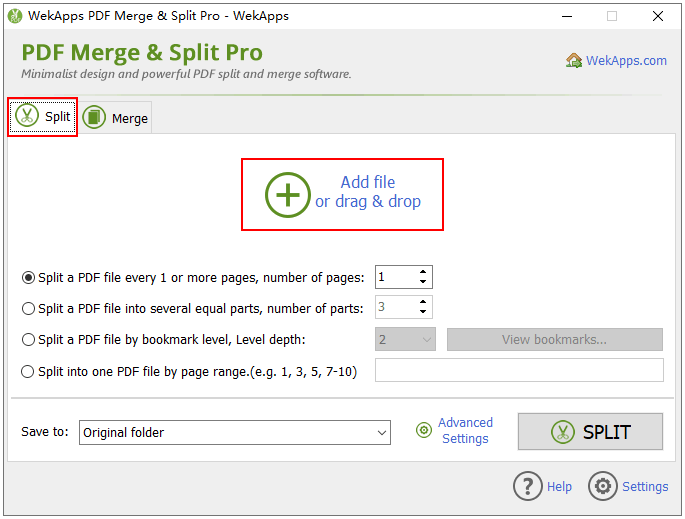
Launch the program, click the Split tab, then click “Add file” or drag your PDF into the window.
-
Preview and prepare the file
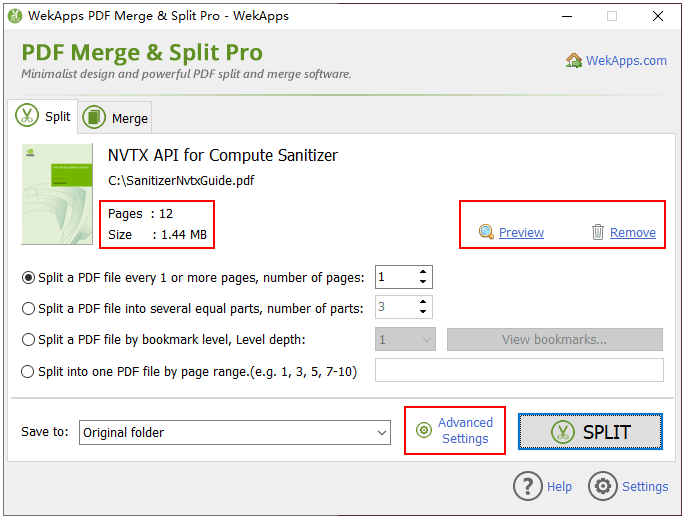
Once added, you can see the file size, the total number of pages, and a preview of the content. You can also remove the file if you added the wrong one.
-
Choose a split method
Pick the method (or combination) that matches your task.
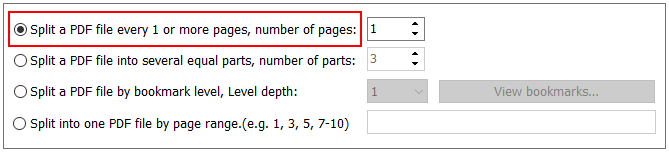
Split every 1 or more pages
Quickly split a PDF into single-page files or groups of pages. Example: a 10-page PDF with “1 page” gives you 10 single-page PDFs; with “2 pages” you get 5 PDFs of 2 pages each.
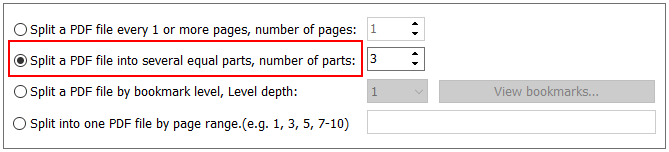
Split into several equal parts
Divide the PDF evenly into a set number of files. Example: a 10-page PDF split into “2 parts” gives you 2 PDFs of 5 pages each.
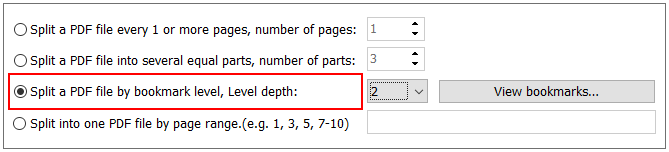
Split by bookmark level
Split according to the depth of your PDF's bookmarks. Example: if level-1 bookmarks hold 9 chapters and you choose depth 1, the PDF is split into 9 files.
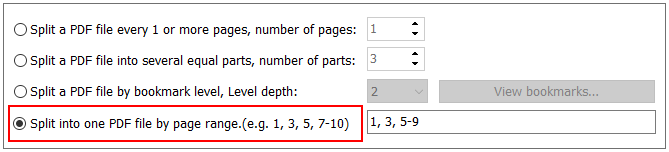
Split into one PDF by page range
Export exactly the pages you need into a new PDF. Example: to keep pages 2, 5, 6, 7 and 9 from a 10-page PDF, enter the range “2, 5-7, 9”.
-
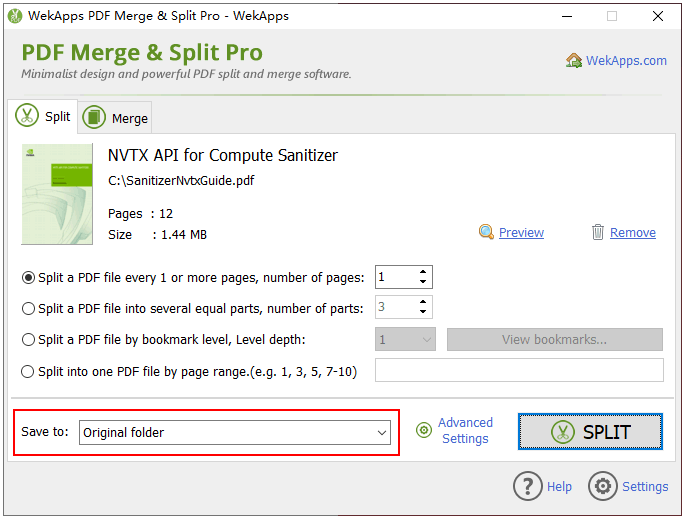
Choose the output location
Select the folder where the split PDFs should be saved.
-
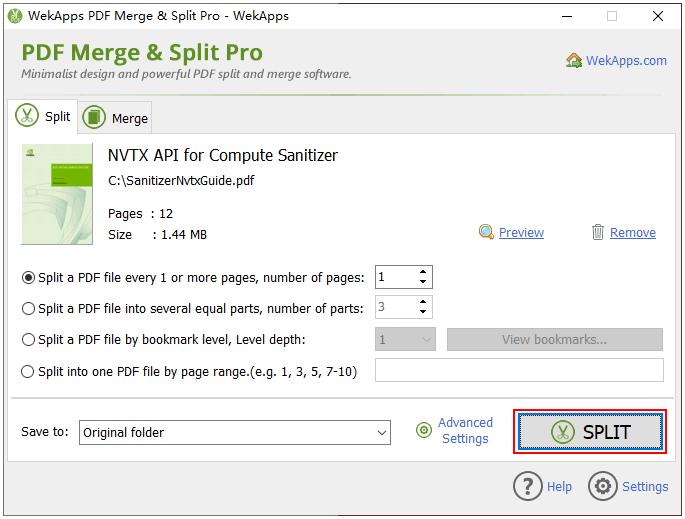
Click Split
Click the Split button. When it's done you can open the output folder, or load the split PDFs straight into the Merge tab.
Splitting password-protected PDFs
You can split encrypted PDFs by entering their open password when prompted, and you can set an open password on the split output files (Pro feature).
Split your PDF now
Download the free version and split your PDF in a couple of minutes.
⬇ Free Download (9.47 MB)Related: How to merge PDF files · Why split PDFs offline? · FAQs